Are you looking for a fast and easy way to Merge JPG Files into a single JPG with Custom Layout, Borders & Image Space? Our free JPG merger tool lets you seamlessly combine two or multiple JPG images, scanned documents, or design elements into one high-quality JPG file — directly in your browser. Customize the layout, adjust border width color and width, and control image spacing exactly the way you want. No downloads or software required. Perfect for users in the United States who need a simple, secure, and reliable solution.
Looking for PDF output? Try our free JPG to PDF merger tool to combine jpgs into a single PDF file.
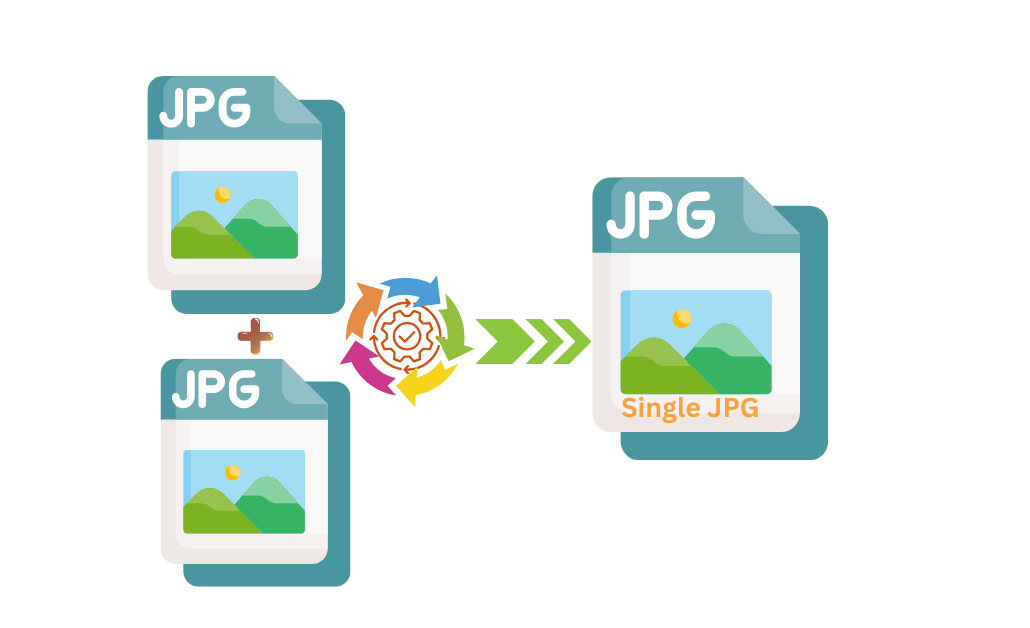
🖼️ How to Merge JPG Files into a Single JPG
1. Upload Your Images
Drag and drop your JPG files, or click to select them from your device. Our tool supports bulk uploading, so you can add as many JPG files as you need.
2. Customize the Merge
Arrange your uploaded JPGs in the desired order. Choose a layout style — vertical or horizontal. JPG is the default output format, but other formats are available too if needed.
3. Download Your Single JPG File
Once the merge is complete, preview the final image and download your high-quality JPG file instantly. Save it to your device or share it via cloud storage.
More Options – Customize Your JPG Files (Optional)
Our JPG merge tool isn’t just about combining jpgs — it also gives you extra customization options to create the perfect final jpg file. After uploading your jpgs, you click on the “More Options” button, where you can access these advanced settings:
- Border Color – Choose a border color to add a frame around your merged JPG file for a polished look.
- Border Width – Adjust the thickness of the border to make it subtle or bold.
- Image Spacing – Define the spacing (in pixels) between two or more JPGs, helping you create a clean layout or collage effect.
See in under jpg, how our tool showed result after implementation of customization seting by adding more advancement in a single jpg file.
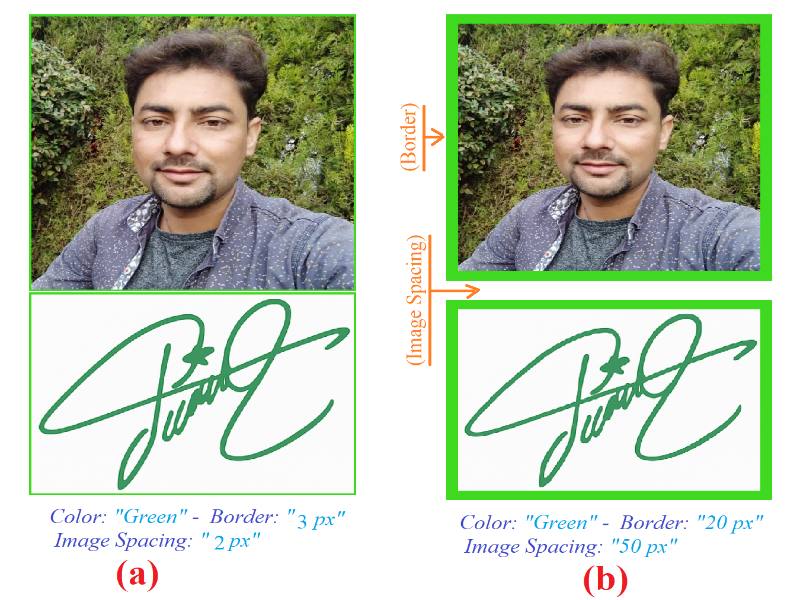
Example Comparison:
- Pic (a): Green border, 3px width, 2px spacing → thin frame and tight layout.
- Pic (b): Green border, 20px width, 50px spacing → thick frame and wide separation.
These customization features give you full control over your layout, ensuring your merged JPGs look professional and visually balanced — perfect for presentations, social media, or personal projects.
✅ Why Choose Our JPG to JPG Merger?
- ✨ Fast Results – Merge JPG files in seconds with instant processing
- 🔒 Private & Secure – All files are automatically deleted after merging
- 🎨 Flexible Layouts – Choose vertical, horizontal, or custom arrangements
- 📱 Mobile-Friendly – Works smoothly on all devices
- 💾 No Quality Loss – Maintains crisp image resolution
- 🌐 Fully Online – No software or sign-up required
👥 Who Can Use This Tool?
- 📸 Photographers – Combine similar shots or create before/after comparisons
- 🛍️ E-commerce Sellers – Merge product photos into one clean layout
- 📚 Students & Teachers – Compile scanned notes or visual resources
- ✈️ Travelers – Make photo collages from vacation images
- 🏢 Professionals – Merge document scans or infographic elements
- 🎨 Designers – Create visual compositions or mockups
No installation needed — everything works in your browser. Whether you’re combining personal jpg files, professional documents, or design mockups, MergeJPG.org makes it quick and easy merging with easy border and image space customization.